
Air Maestro’s Recency Check Form function allows organizations to create online checklists and associate them with applicable recency items.
These check forms can then be used during routine recency assessments (Induction, Line Checks, Base Checks etc.) to assess the competency of personnel.
In addition to capturing specific recency assessment criteria, the forms contain personnel details, aircraft details, comments and associated documents.
The process for creating a recency check form requires four steps:
Creating a Rating Scale
A rating scale is a collection of possible selections for any evaluation that is being performed within the check form. For example, this could be a scale of 1 to 10 or a scale including Good, Acceptable and Poor.
You can create multiple rating scales for use in your check forms based on your company requirements. For each header and checklist item in a check form, you may associate an applicable rating scale.
-
Select Setup > Recency Check Form Setup under Operations. The Recency Check Form screen is displayed.
- Select the Rating Types tab.
-
Select + New Rating Scale
-
Enter a meaningful name for the rating scale in the ScaleName text box. For example, 1-5, competent/not competent etc.
-
Click Insert
-
Click
corresponding with the new rating scale to create the applicable options.
-
Click + New Option to insert a new option name.
-
Enter a meaningful name for the option in the Option Name text box. For example, competent, poor, fair, etc.
-
Click Insert
-
Repeat steps 7-9 to add the additional options applicable to the rating scale.
-
Use the arrows [
] to change the sort order of the options in the rating scale.
Creating a Checklist
For steps on creating a checklist, see this article: How to create Checklist Templates
Setting Up Sign-Off Personnel
- Select Setup> Select Recency Check Form Setup under Operations.
- Select the Check Form Options tab.
-
Select the Enabled Recency Check Form Sign-Offs tick box.
-
Select the Automatically Close Check Forms After Sign-Offs are Completed tick box, to automatically close check forms once all sign-offs have been obtained. If this option is unselected, check form managers must click [Close] after sign-offs have been obtained to close the check form and update the examinee’s results.
-
Select the required sign-off personnel.
- Click

-
Repeat steps 5-6 to add additional sign-off personnel.
Assembling a Check Form
Before you can assemble a check form, you must ensure you have created the applicable checklist (and associated rating scales) and setup the applicable sign-off personnel.
-
Select Setup > Operations > Recency Check Form Setup
-
Select the Recency Check Form tab.
-
Select + New Check Form Template
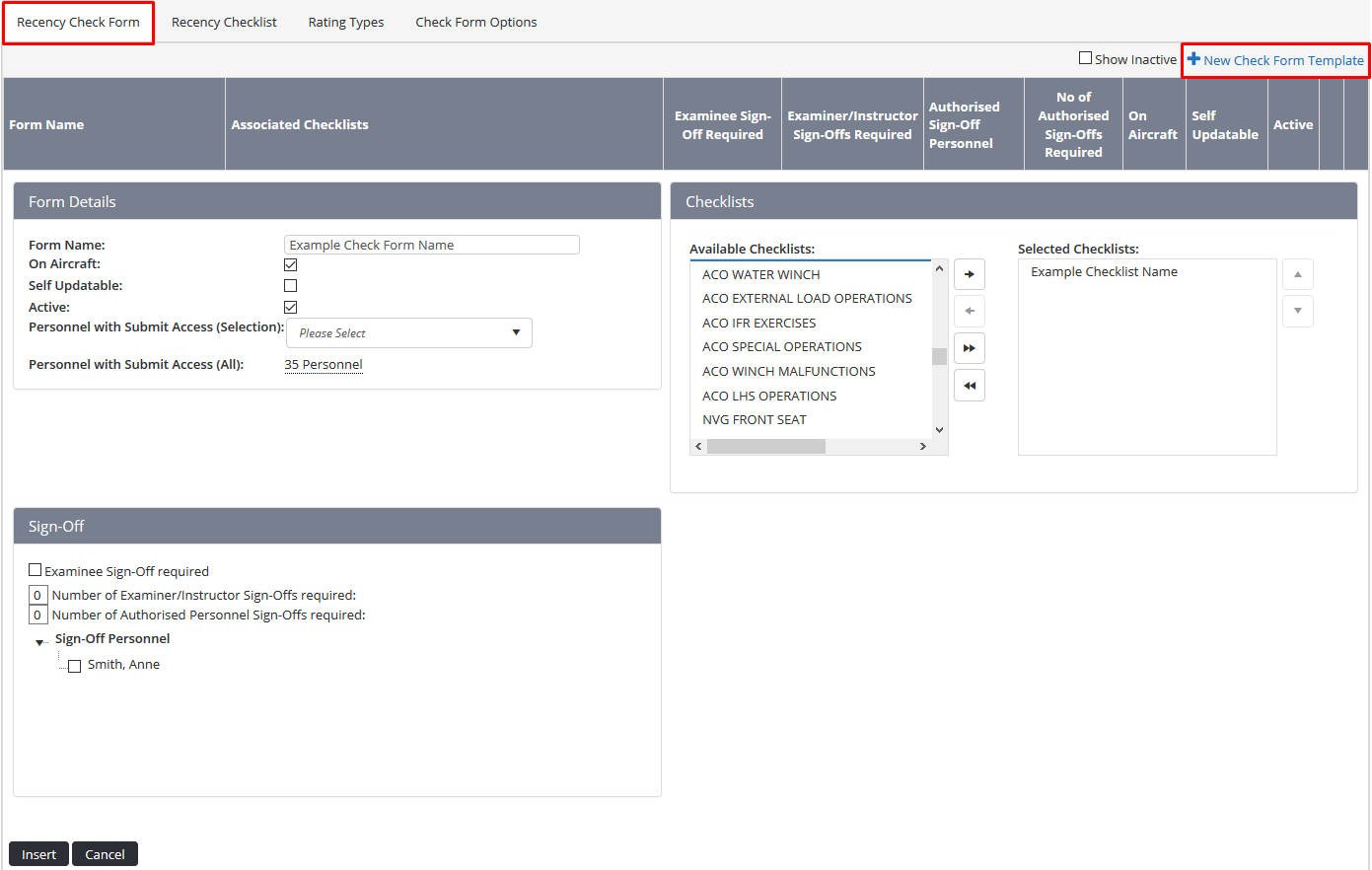
-
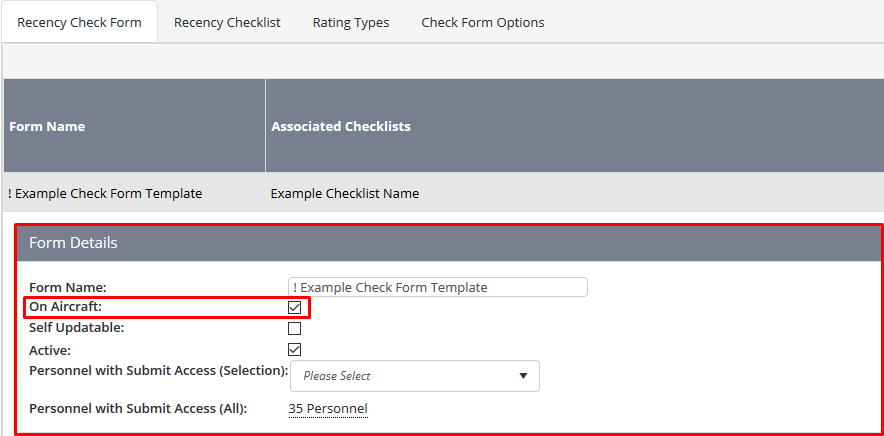
Enter a meaningful name for the check form in the Form Name text box. For example, Base Check, Line Check, Induction Check etc.
-
Select the On Aircraft tick box, to display the following fields in the check form: Pilot, Route Flown, Primary Aircraft, Secondary Aircraft, and Check Performed On.
-
Select the applicable checklist templates associated with this check form in the Associated Checklists pane. Use
 to select the highlighted checklist or to select all the available checklists.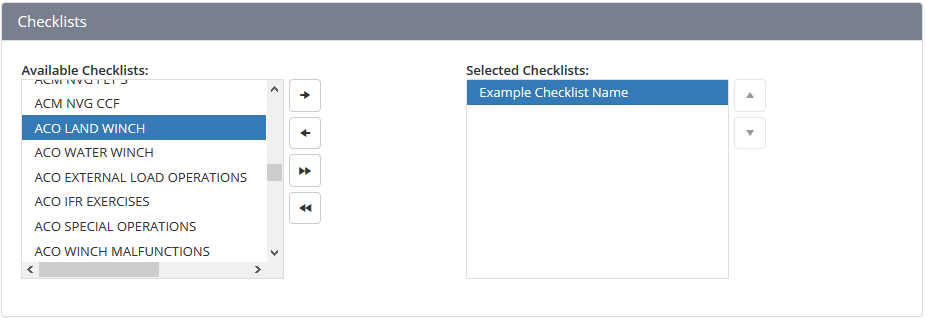
-
Select the applicable sign-off personnel in the Sign-Off Personnel listing.
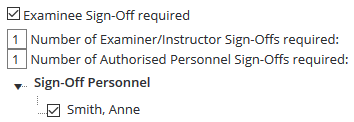
To add additional personnel to this listing, provide the Check Forms > View Selection or View All access level to the required personnel.Control Type
Description
Examinee Sign-Off Required
Select whether the examinee is required to sign-off the check form once it has been completed by the examinee.
Examiner/Instructor Sign-Off Required
Select whether the examiner is required to sign-off the check form once they have completed and submitted the form.
Number of Authorised Personnel Sign-Offs Required
Select the number of sign-off personnel that are required to sign-off the check form before it is completed. For example, if you enter ‘1’ and you have nominated ‘2’ sign-off personnel, as soon as one of the sign-off personnel sign-offs the check form, it progresses into the ‘Completed’ status and no further sign-offs are required.
Comments
0 comments
Please sign in to leave a comment.