
The PWA (Progressive Web App) can be configured for offline use by creating an Offline Login PIN and enabling the modules you want available without an internet connection. This setup downloads the required data to your device and must be completed for each user account that will use the device offline.
Switching to the PWA
In the desktop version, click the computer icon in the top left-hand corner of the screen.
This switches the interface from desktop mode to the PWA.
Log in to continue.
Setting Up Offline Mode From Inside the PWA
While logged into the PWA, click the Online status indicator in the top-right corner.
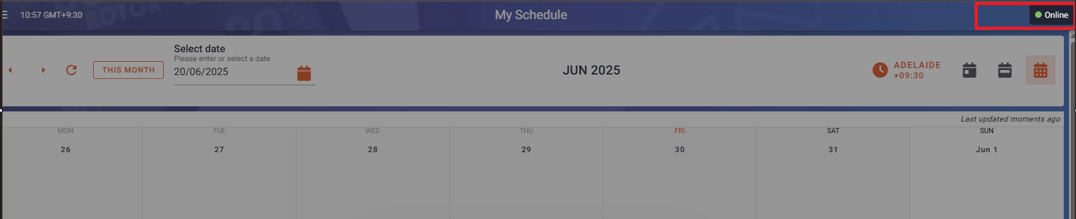
In the window that appears, set an Offline Login PIN.
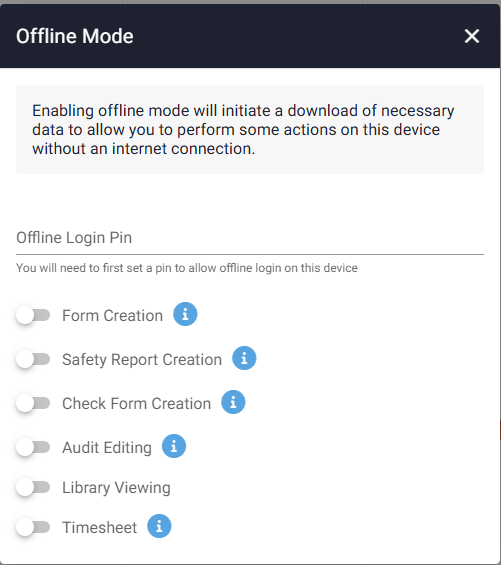
Enable the modules you want available offline (e.g., Form Creation, Safety Report Creation, Audit Editing, Library Viewing, Timesheet).
The PWA will begin downloading the required data to your device.
Repeat this process for each user account that needs offline access on this device.
Important Notes
Setting an Offline Login PIN is what enables offline use—there is no separate offline mode button.
Modules must be enabled with an active internet connection so the PWA can download the necessary data.
Without a PIN and enabled modules, the PWA cannot be accessed offline.
Comments
0 comments
Please sign in to leave a comment.