
Verifying roster shifts ensures that all planned duties comply with your organisation’s work practices and recency requirements. This process allows you to anticipate potential exceedances early and correct them before finalising the roster.
Sections
Overview of Roster Verification
Roster verification checks all rostered shifts against relevant work practices and associated recency items. It highlights compliant, borderline, or non-compliant shifts so you can identify issues immediately.
Verification is only accurate when duty shifts contain the complete information on the shift times and relevant Work Practice.
Before you verify
To ensure accurate results, confirm the following:
Duty shifts have a Work Practice selected in their shift options.
Duty times, FDP times and any relevant standby times are entered for each shift.
Recency items are correctly configured for shifts that require them.
Without these details, the verification tool cannot correctly anticipate or predict potential exceedances.
To preview and manage details of a shift, right-click on the shift in the left-hand side column:
You can also use the "Query" cursor or right-click to preview and edit a specific shift within the Roster:
How to verify roster shifts
Select Operations > Roster.
The Online Roster screen opens in a new window.
Expand the required base location and department.
Select Menu > Verify.
Air Maestro checks the roster against all applicable work practices and recency requirements.
Understanding verification results
When verification completes, shift codes display coloured backgrounds:
Green - fully compliant
Yellow - close to exceeding requirements / Caution
Red - not compliant
This visual feedback helps you quickly anticipate where adjustments may be required.
Viewing specific conflicts
Select the Query tool and click the relevant tile in the roster.
The system will display details of the Work Practice on the right-hand side of the window, providing details of each calculation and potential recency requirements that were configured for the shift.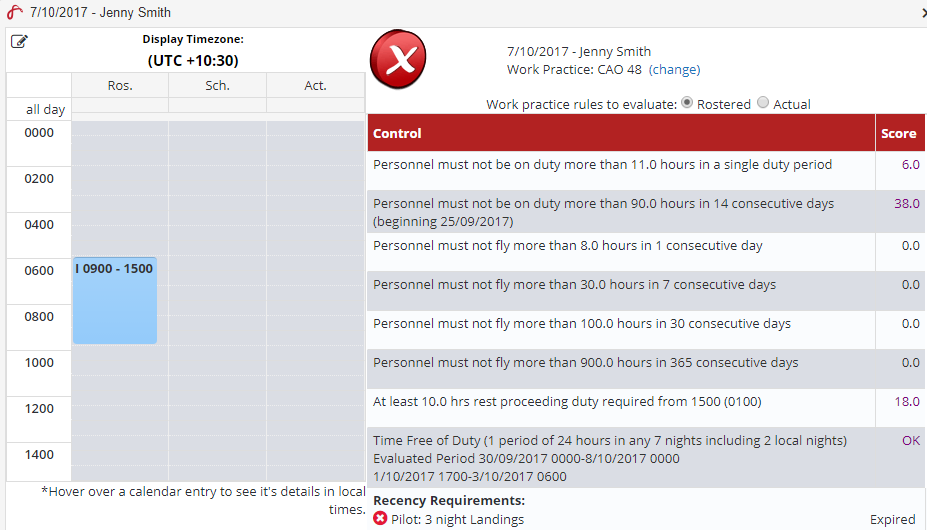
Next Steps
Modify the roster as required (for example: adjust duty times, update Work Practice selection, or reassign shifts).
Re-run Verify to confirm the roster is now compliant.
Comments
0 comments
Please sign in to leave a comment.